API keys and AI assistants
Open the account menu and choose API keys & AI assistants.
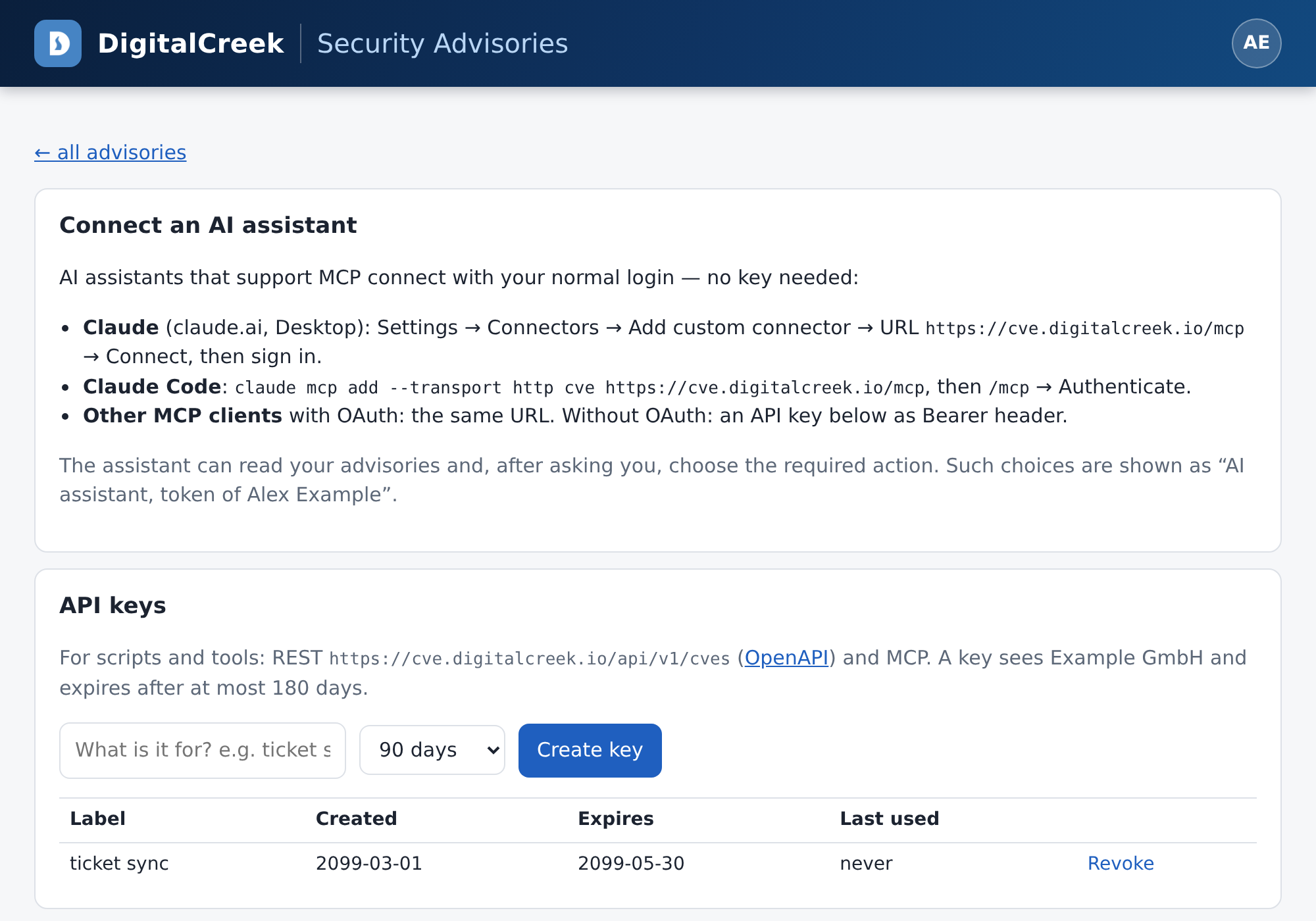
Connect an AI assistant
AI assistants that support MCP connect with your normal login, so you need no key.
Go to Settings → Connectors → Add custom connector, enter this URL, click Connect and sign in:
https://cve.digitalcreek.io/mcp
claude mcp add --transport http cve https://cve.digitalcreek.io/mcp
Then run /mcp and choose Authenticate.
Use the same URL. Clients without OAuth can send an API key as a Bearer header.
The assistant can read your advisories and, after asking you, choose the required action. Such a choice is shown as AI assistant, token of your name.
Create an API key
API keys are for scripts and tools, such as a ticket system.
- Enter what the key is for, for example ticket sync.
- Choose how long it lasts: 30, 90 or 180 days.
- Click Create key and copy it right away. It is shown only once.
Keep a key like a password. You can have up to 10 active keys, and a key sees only your company's advisories. If a key is lost or no longer needed, click Revoke next to it.
Use the REST API
Send the key as a Bearer header. List your open advisories:
curl -H "Authorization: Bearer $KEY" \
  "https://cve.digitalcreek.io/api/v1/cves?status=open"
status can be open, fixed, not_affected or all. product filters by product name, for example product=PHP.
Choose a required action:
curl -X POST -H "Authorization: Bearer $KEY" -H "Content-Type: application/json" \
  -d '{"action": "fix_window", "note": "Next Tuesday"}' \
  "https://cve.digitalcreek.io/api/v1/cves/CVE-2099-0001/action"
action is one of fix_now, fix_window, accept_risk or need_info.
The full description is in the OpenAPI file. A summary for AI tools is in llms.txt.