Notifications
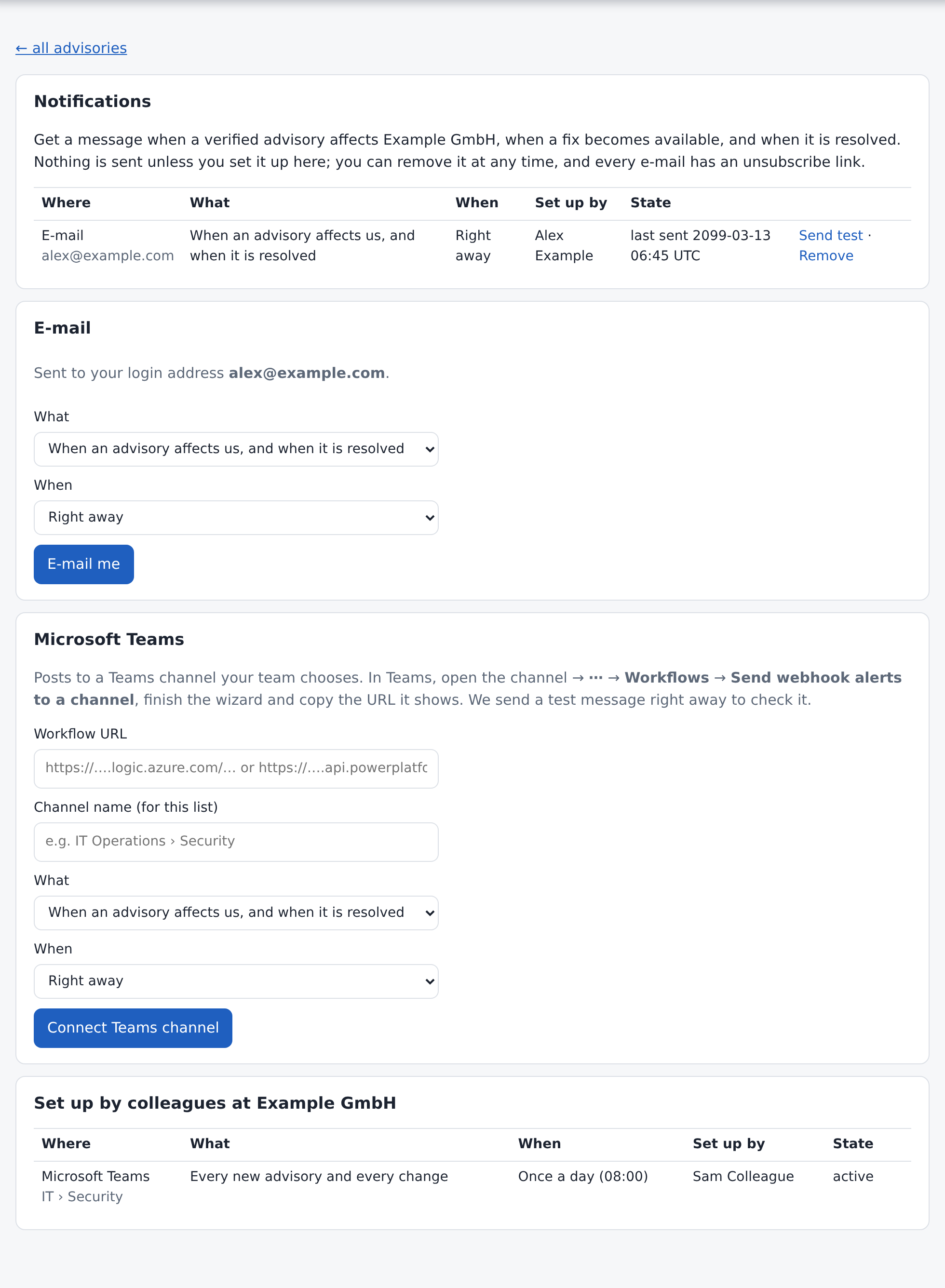
The portal can tell you when something needs your attention, by e-mail or in a Microsoft Teams channel. Nothing is sent unless you switch it on.
After your first login, the advisory list offers Set up notifications:

You can also open it any time from your avatar (top right) → Notifications. Not now hides the offer; the page stays in the avatar menu.
What you can choose
| Setting | Options |
|---|---|
| What | When an advisory affects us, and when it is resolved: a message when a verified advisory affects your company, when a fix becomes available for it, and when it is fixed or turns out not to apply. Every new advisory and every change: also advisories that do not affect you, and every status change. |
| When | Right away: within a few minutes of the change. Once a day (08:00): one summary in the morning, after our daily verification. Nothing is sent on days without changes. |
Each message lists the advisory, its status, whether a fix is available, our explanation and, for open advisories, the affected systems, with a link to the portal.
E-mails go to the address of your login, shown on the page. You cannot enter another address. To use a different one, ask your DigitalCreek contact to change your login.
We send a test e-mail straight away. Every e-mail has an Unsubscribe link at the bottom. It asks once more before it removes the notification.
Microsoft Teams
The message is posted to a channel your team chooses, through a Teams workflow:
- In Teams, open the channel, click ⋯ next to its name, then Workflows.
- Choose Send webhook alerts to a channel, give it a name and finish the wizard.
- Copy the URL the wizard shows. It starts with
https://and containslogic.azure.comorpowerplatform.com. - In the portal, paste it under Microsoft Teams, add a channel name for your own overview, choose What and When, and click Connect Teams channel.
We post a test card right away. If it does not arrive, nothing is saved; check that the workflow is switched on and the URL is complete. To stop the messages, remove the notification in the portal, or switch off the workflow in Teams.
Good to know
- Each notification belongs to the person who set it up. Colleagues see it under Set up by colleagues so nobody adds the same channel twice, but only you can test or remove it.
- If your access ends, your notifications stop.
- Delivery problems: after several failed attempts a notification is paused and the page says why. Send test resumes it once delivery works again.
- Up to five notifications per person.